
Just found a solution to a longstanding problem I was facing. Therefore, I thought of documenting it for those who may have the same issue.
The use case is: Using VBA, how to write in PowerPoint notes page?
Each slide has a notes area. I want to write custom text as notes using VBA.
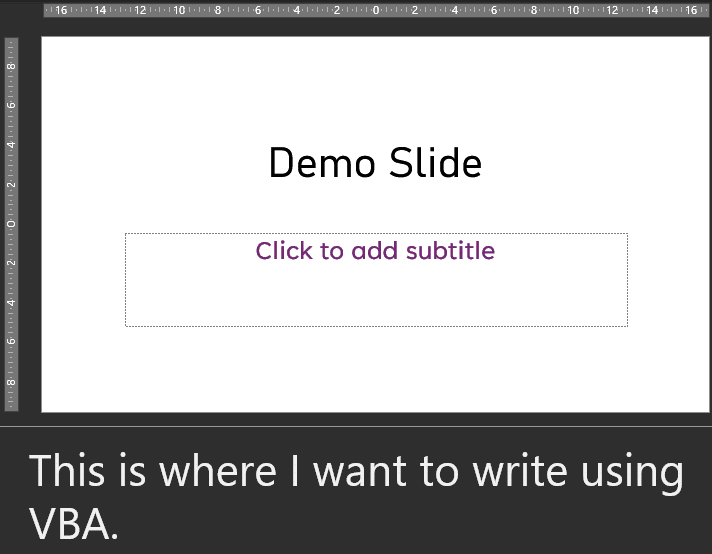
The SLIDE object has a NOTESPAGE property which itself contains many things. But I could not find the right place to add this text.
The documentation for NOTESPAGE mentions that it is a SLIDERANGE object. The syntax is complicated and confusing. This is because, what we see below the slide as notes is a subset of the actual Notes view. To see the real Notes view you must choose View tab on the ribbon and select Notes Page. The Notes Page is actually a page with a proper layout. But this is even more confusing.
Finally I found the correct object.
<slide>.notespage.shapes(2).textframe.textrange.text
Just use this syntax and then retrieve or add text. Why shapes(2)? Because, shape(1) is the slide image object itself – the image of the slide that is shown on the notes page.
There can be various objects on a notes page. These include:
| Enum Value | Purpose / Meaning (What this placeholder is for) |
|---|---|
ppPlaceholderSlideImage | The thumbnail of the actual slide. This is auto‑generated by PowerPoint and always shows the slide’s current content. It cannot be replaced directly — only moved, resized, hidden, or covered with another shape. |
ppPlaceholderBody | The Notes text box. This is where the presenter’s notes go. Changing this affects only the notes, not the slide. |
ppPlaceholderHeader | Header text shown on the Notes Page printout (if enabled). Not visible on the main slide. |
ppPlaceholderFooter | Footer text for the Notes Page (date/time, copyright, etc.). Independent from the slide footer. |
ppPlaceholderDate | Displays the date on the Notes Page. Can be formatted or turned off. |
ppPlaceholderSlideNumber | The slide number as printed on the Notes Page, not the slide itself. Often appears as "Slide Number Placeholder" in .Name. |



7 Responses
why is it “shapes(2)”?
This is because on the Notes page, the first shape is the Slide Image. Second shape is the Notes text.
Is it possible to determine whether the selection is on Notes page?
I am inserting text wherever the user’s cursor is (the selection). I wish to check what sort of shape the selection is in. I check if ActiveWind ow.Selection.Type = ppSelectionText and then check ActiveWindow.Selection.ShapeRange.Type . If it does not have .ShapeRange I trap the error and assume that the selection must be on Notes page.
It works but I feel that there must be a better way!
Yes. ActiveWindows.ViewType = ppViewNotesPage
This will return True.
Is there a way to determine if the selection is on the Notes page?
Yes. ActiveWindows.ViewType = ppViewNotesPage
This will return True.