
All shapes in PowerPoint appear like this by default.

We often change them to the way we want. But unfortunately, when you add a new shape, it again draws the blue default shape. This requires repetitive usage of Format Painter.
The solution is so simple, you will curse yourself for not noticing it. Customize just ONE shape exactly the way you want. Right click on it and choose Set as Default Shape.
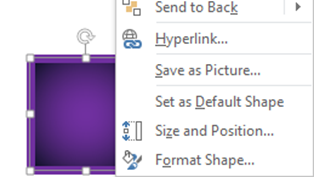
Now all future shapes you draw will automatically look like the new default. Defaults are stored on a per presentation basis. So this default will not affect other presentations. Same concept works for textboxes as well.
Simple, Effective and Powerful. Use it!
Yes it works exactly the same way in Word and Excel as well.



One Response
nice