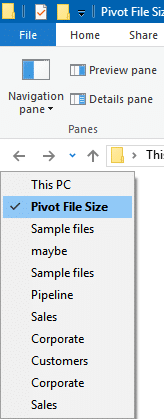
File Explorer is used routinely to navigate folders and files. Often we move from one folder to another. What if we want to go back to a specific folder in the recent history? In the file explorer you see two buttons just below the ribbon Left arrow and Right arrow. This is used to navigate previously navigated folder in backward or forward direction. In this case you have to click on these buttons multiple times to reach the desired folder.
Fortunately there is a better method of Quick Folder Navigation. Click on the down arrow next to these Back and Forward buttons. This one shows the list of recently navigated folders. Now you can directly choose the desired one. Simple but very useful.