
This is a practical problem I faced recently. Found a simple but useful solution. So I am sharing it with you. I am sure you will also find it useful…

Contents
The Need
Very often we get lists which are separated by commas in random order. For example, here is a list of countries.
India, Malaysia, Singapore, Hong Kong, Sri Lanka, Philippines, New Zealand, Australia, USA, UK, Germany, Poland, Thailand
We want to keep it as a comma based list, but the countries should be sorted in alphabetical order.
Here is how you do it. Any version of Word will work.
The Solution
Copy the list and paste it into a new document. Now we want to temporarily convert the list to multiple paragraphs. Each paragraph will have one name in it.
This is done using Find – Replace. Press CTRL H to open the dialog. Type , in Find and ^p in Replace option. Look at the list. If there is a comma followed by a space type comma followed by a spacebar in the Find What area.
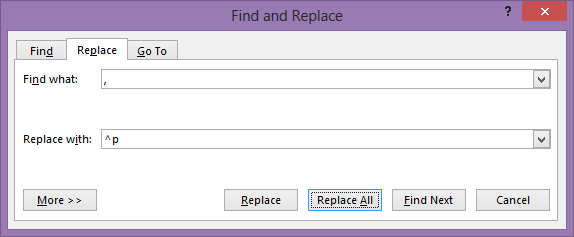
What is ^p?
This is a special character. Word uses many special characters which are not visible, but they have a purpose. Paragraph Mark, Tab, Section and Page breaks are examples of such characters.
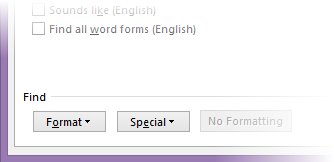
How do you know the entire list? Click in the Find What textbox and click MORE to expand the dialog. Now click the Special button. A long list appears. These are the special characters which can be FOUND.
Similarly, if you click inside the Replace With textbox and then click the Special button, you will see another list. This is the list of special characters which can be used to REPLACE. Notice that the lists are not exactly the same.
The left one is what can be found and the right side list is for replacement.

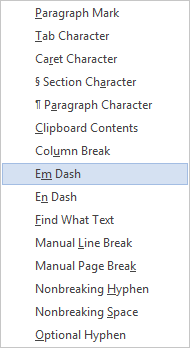
Why are the items different? Because some things can only be found – not replaced. For example, you can find any character, digit or letter. However you cannot replace with ANY character. You will need to specify the exact character. That is why the find list is longer than the replace list.
Just go through these to remember that so much can be done with Find – Replace.
Search for comma, replace with paragraph mark ^p
That is what we will do. Click Replace All. Now all the countries are in separate paragraphs.
The next step is to sort them.
Sorting in Word
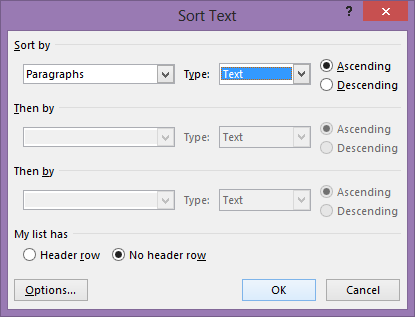
This is simple. Go to Home tab and click on Sort button. No need to select anything. We want all paragraphs to be included. Document will be selected automatically when you click the Sort button.

Click OK on the dialog. If you want, you could have chosen descending option. Notice that it understands Text, Numbers and Dates as well.
Now our list is sorted. All that we need to do is convert it back to comma delimited one.
Search for ^p replace with comma and space

Australia, Germany, Hong Kong, India, Malaysia, New Zealand, Philippines, Poland, Singapore, Sri Lanka, Thailand, UK, USA,
Delete the extra comma at the end. That’s it.
***



3 Responses
How about “Convert to table -> Sort -> Convert to text” ?
Sir, we have a excel sheet which gives us daily and monthly reports, I am un able to add in a new sheet although there are only 3 sheets in that file. What could be the reason, please help ?
Trying to sort a Word doc with email addresses separated by commas. This worked beautifully. THANK YOU!!